Market ID
Configure market identification for stores using Shopify Markets.
Overview
A Market ID enables you to route tracking data to different destinations based on which Shopify Market a customer is browsing. This is useful when you need separate pixels for different regions.
When you enable "Allow different pixels per Shopify Market" in your Shopify Source settings, Elevar automatically handles market identification for checkout events. However, for headless storefronts, you need to manually pass the Market ID so events are associated with the correct market before customers reach checkout.
TIP
You only need to do this if you've enabled Allow different pixels per Shopify Market in your Shopify Source settings. Otherwise, this setup is not necessary.
Find Your Market ID
To locate the Market ID for each Shopify Market:
- In your Shopify Admin, navigate to Settings
- Select Markets from the left navigation
- Click into an individual market. The Market ID is the numeric value at the end of the URL shown in your browser.
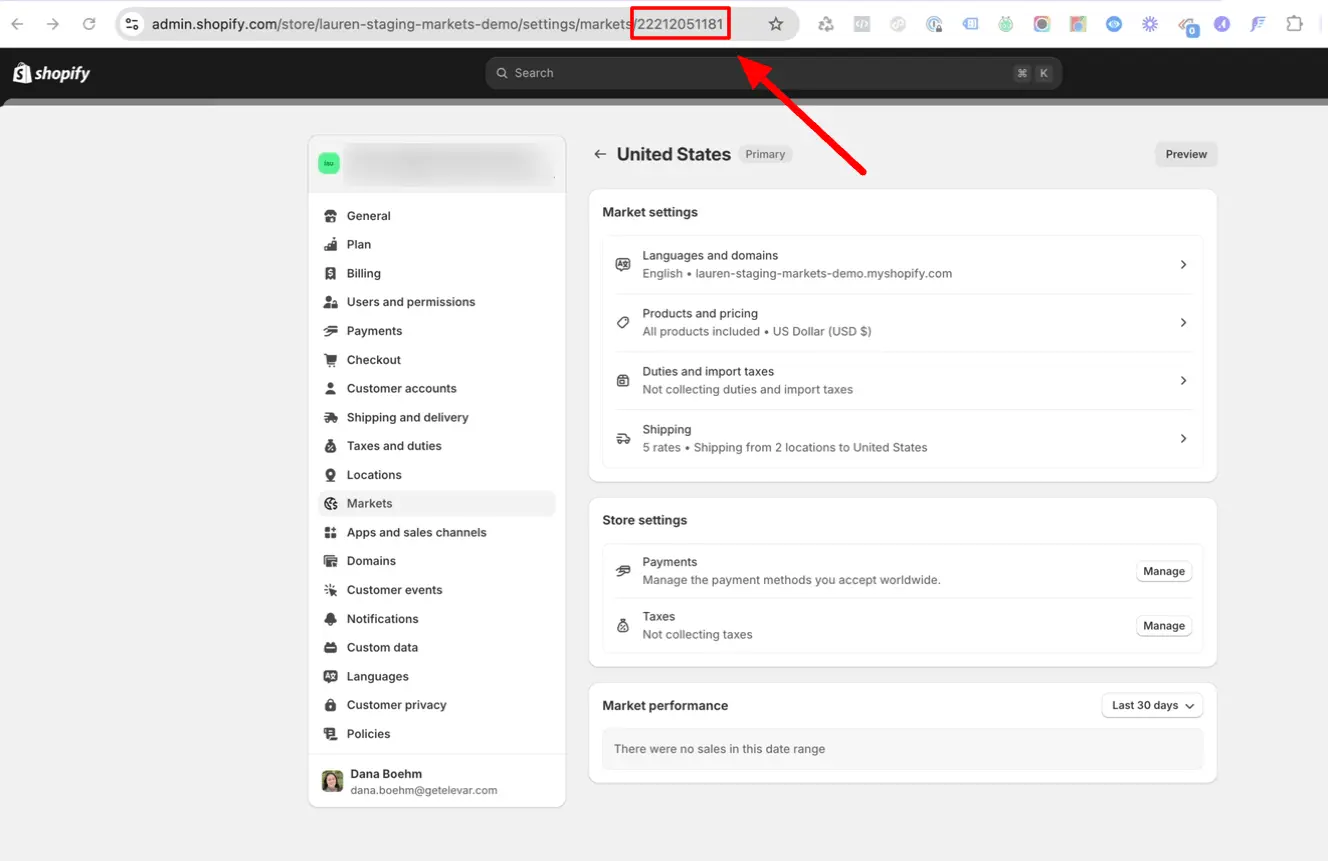
For example, in the URL from the image above, the Market ID is 22212051181.
Pass Your Market ID
You can provide your market ID by defining a function that returns it. This code must run before the Elevar browser script loads.
const getMarketId = async () => Promise.resolve("22212051181");

window.ElevarMarketIdFn = async () => {
  const marketId = await getMarketId();
  return marketId;
};
WARNING
If you run the Elevar script before defining your market ID function, Elevar won't recognize the market ID. The function must be defined on every page reload, this doesn't include virtual page changes. The window.ElevarMarketIdFn must return a string or a promise that returns a string.
TIP
Examine the console for errors from Elevar after your function is defined. Your getMarketId implementation should detect the market ID dynamically based on your routing logic, geolocation, or other market selection mechanism.
Validation
After implementing the Market ID function:
- Open your website in a browser
- Open the browser's developer tools and go to the Network tab
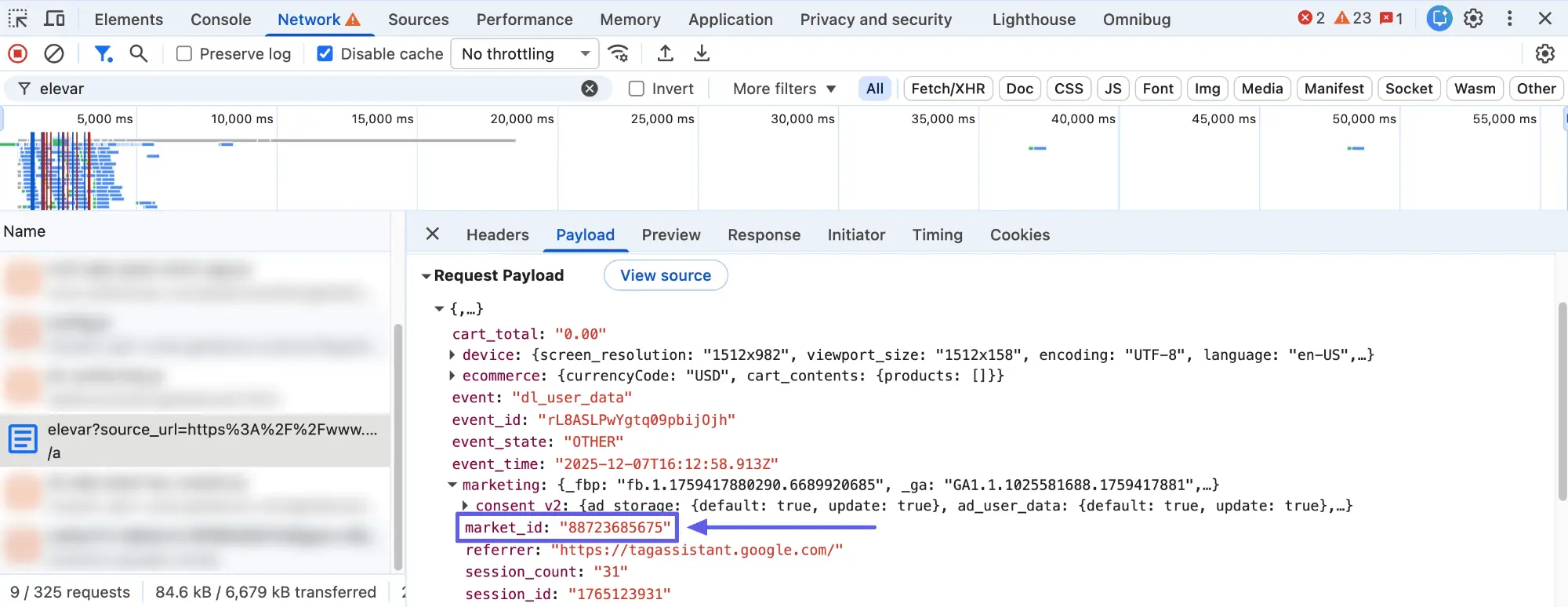
- Filter requests by typing
elevarin the search box - Trigger a Data Layer event (e.g., view a product)
- Click on a request to Elevar and check the Payload tab
- Look for
market_idin the request payload - Verify it matches the expected Market ID for the current market