
Server Setup
Send requests from your server to track events that originate outside the browser.
Overview
Follow this guide to learn how to send events to Elevar directly from your backend using server-to-server tracking. This approach is especially useful for capturing critical or non-browser-based events with higher reliability.
TIP
Server-to-server tracking is optional. If you're only implementing browser-to-server tracking, you can skip this guide and proceed with the Browser Setup.
When to Use Server Events
Consider implementing server-to-server tracking if:
- You're tracking Point of Sale (POS) or offline transactions
- You need to track backend processes like subscriptions
- You want backup tracking for critical events like purchases
- Your events don't originate from the browser
Locate Your Credentials
WARNING
Before implementing server-to-server tracking, ensure you've completed the API Source guide.
You'll need three values from your Elevar app to authenticate server requests:
- Endpoint URL: The server endpoint where events are sent
- Website ID: Your unique website identifier
- Server Key: Authentication key for your requests
To find these values, navigate to My Tracking in your Elevar app, click on your API Source, then go to the Server Setup section. Copy each value for use in your server implementation.
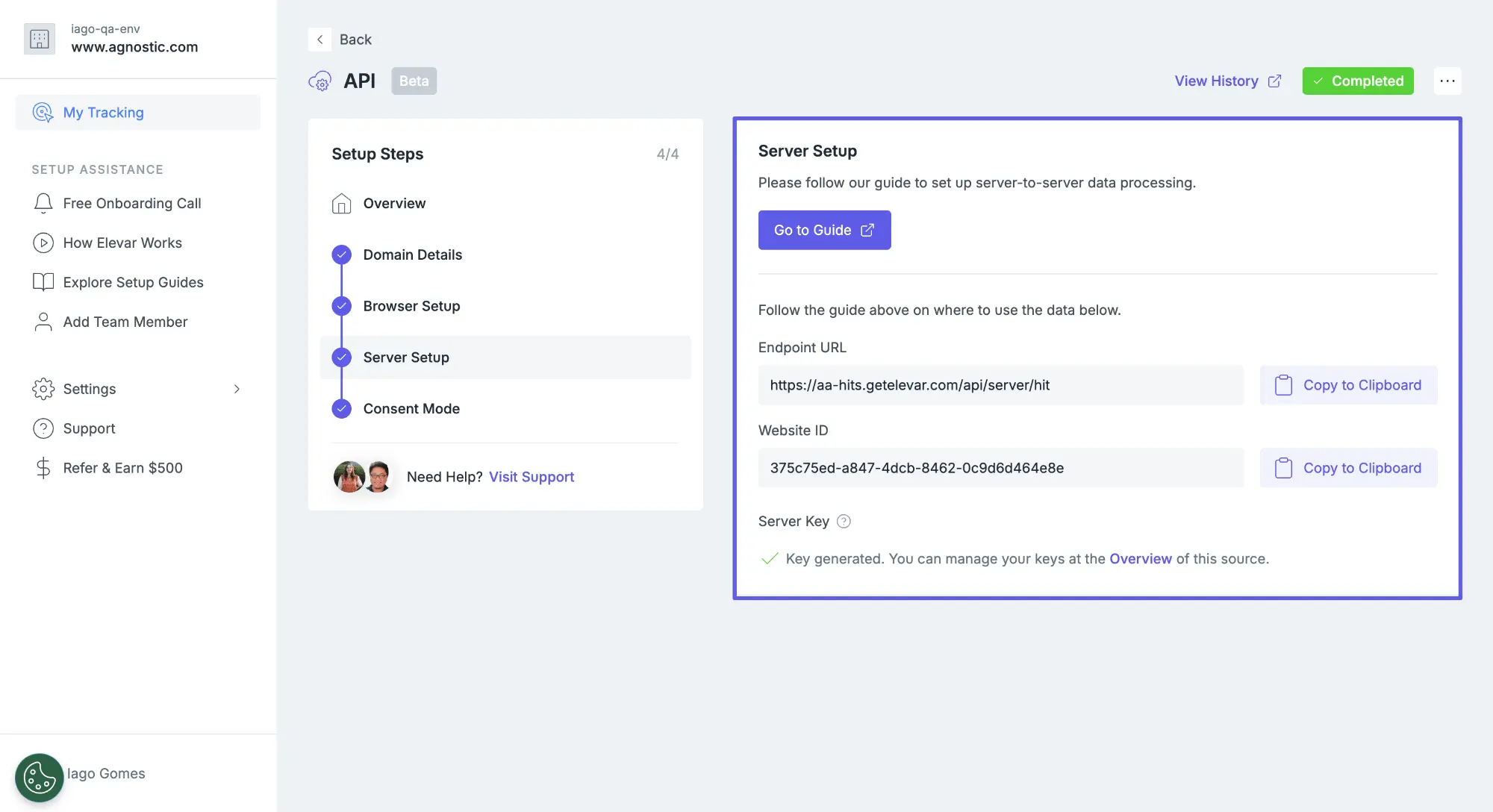
When you generate a Server Key, copy it immediately and store it in a secure place. The key won't be viewable again after you close the dialog. Once generated, you can manage your keys from the Overview page, where you can revoke existing keys or generate new ones.
Build Server Request
Send events to Elevar by making POST requests to your Endpoint URL with the required headers and event payload.
const endpointUrl = "YOUR_ENDPOINT_URL";
const websiteId = "YOUR_WEBSITE_ID";
const serverKey = "YOUR_SERVER_KEY";
const sourceUrl = "https://www.yourwebsite.com/"; // The page URL where the event occurred

// Build the full endpoint URL with encoded source_url parameter
const fullEndpointUrl = `${endpointUrl}?source_url=${encodeURIComponent(sourceUrl)}`;

const headers = {
  "content-type": "application/json",
  "x-website-id": websiteId,
  authorization: `Bearer ${serverKey}`,
  "user-agent": "Mozilla/5.0", // Customer's User Agent
  "x-forwarded-for": "123.456.789.0" // Customer's IP address
};

const payload = {
  event: "dl_purchase",
  event_id: "unique-event-id-123", // Unique identifier for this event
  event_time: new Date().toISOString(), // ISO 8601 timestamp
  marketing: {
    landing_site: "/store/product-a?utm_source=web&utm_campaign=spring" // Page path the user landed on when they visited your site with query parameters (UTMs, click IDs)
  },
  user_properties: {
    // The following fields aren't required if unavailable
    customer_id: "5928549548188",
    customer_email: "bill@gmail.com",
    customer_first_name: "Bill",
    customer_last_name: "Call",
    customer_address_1: "1 Hills Plantation Drive",
    customer_address_2: "",
    customer_city: "Charleston",
    customer_country: "United States",
    customer_province: "South Carolina",
    customer_province_code: "SC",
    customer_zip: "22222",
    customer_phone: "999-999-9999",
    customer_order_count: "1",
    customer_total_spent: "0.0",
    customer_tags: "",

    // The following field is required
    visitor_type: "logged_in" // "logged_in" || "guest"
  },
  ecommerce: {
    currencyCode: "USD",
    purchase: {
      actionField: {
        id: "4835925655784", // Order ID
        order_name: "#1005", // Order User-Friendly ID
        revenue: "185.3", // Revenue
        tax: "15.3",
        shipping: "0.0",
        affiliation: "your-store-name", // Store name
        sub_total: "170.0", // Sub total
        product_sub_total: "170.0", // Product Sub total
        discount_amount: "0.0",
        sales_channel: "pos", // Description of sales channel
        physical_location_id: "00000000000" // Location ID of your physical store
      },
      products: [
        {
          id: "LB00161-34689553170476", // SKU
          name: "Lovebox Original Color & Photo", // Product title
          brand: "Lovebox INC",
          category: "Home,Living,Art & Objects,Tabletop",
          variant: "USA wall plug",
          price: "119.99",
          quantity: "1",
          position: "1", // Position in checkout starting at 1
          list: "/art/wallhangings", // The list the product was discovered from
          product_id: "6979886940352", // The product ID
          variant_id: "41141193965760", // The variant ID
          compare_at_price: "139.99", // If available, otherwise use "0.0"
          image: "https://cdn.shopify.com/small.png", // If available, otherwise use an empty string
          inventory: "5", // If available, otherwise use an empty string
          cogs: "55.25" //Cost of goods sold for dl_purchase when using Profit Optimization
        }
      ]
    }
  },
  device: {
    screen_resolution: "2560x1440",
    viewport_size: "2560x457",
    encoding: "UTF-8",
    language: "en-US",
    colors: "24-bit"
  },
  page: {
    title: "Home",
    raw_referrer: "https://www.google.com/search?q=example" //optional
  }
};

const response = await fetch(fullEndpointUrl, {
  method: "POST",
  headers: headers,
  body: JSON.stringify(payload)
});
Important notes:
source_urlshould contain the page URL where the event occurredx-forwarded-forshould contain the customer's IP address for accurate geolocationuser-agentshould match the customer's browser user agent string- Optional fields are recommended for better tracking accuracy and richer data analysis
- Replace placeholder values with your actual credentials from the Elevar app
- For POS orders you may not have real browser context (page URL, user agent, client IP). When unavailable, mock required fields so the request can be accepted and destinations receive a complete payload
Debug Mode
Debug mode allows you to validate your event payloads before deploying to production. When enabled, Elevar returns detailed validation responses without processing the events.
To enable debug mode, add &debug=1 to your endpoint URL and log the response to validate your payload:
// Enable debug mode
const fullEndpointUrl = `${endpointUrl}?source_url=${encodeURIComponent(sourceUrl)}&debug=1`;

// Log the response for validation
console.log("Status:", response.status);
const responseBody = await response.text();
console.log("Response:", responseBody);
When the payload is valid, the debug mode returns 200 OK with {"result":"accepted"} in the response body. If there are validation issues, the response includes error details to help you fix the payload structure.
WARNING
Never deploy to production with debug mode enabled. Events sent with debug=1 are not processed and won't reach your destinations. Always confirm debug mode returns 200 OK during testing, then disable debug mode for production deployment.
Purchase Grouping
When sending purchase events from both browser and server, Elevar aggregates these events to combine data from multiple sources before sending to your destinations.
Grouping requirements:
- Both events must be received within 5 minutes of each other
- Both events must have the same order ID in
actionField.id
If these conditions aren't met when you're sending both browser and server purchase events, some events may be ignored depending on your destination settings.
TIP
Grouping ensures you get the benefits of both tracking methods (browser context when it works, server reliability and backup when browser fails) without inflating your conversion counts.
Context Preservation
If you're sending only server events and skipping browser events, you should preserve attribution context from the user's browser session. This ensures marketing data (UTM parameters, referrers, etc.) is captured and sent with your server events.
Use the ElevarInvalidateContext() function to push context data to the Data Layer, then retrieve it and send to your server:
// Push context data to the data layer
window.ElevarInvalidateContext();

// Access the context data from the data layer
const contextData = window.ElevarDataLayer[window.ElevarDataLayer.length - 1];

// Include the marketing object in your server event payload
const payload = {
  event: "dl_purchase",
  marketing: contextData.marketing
};
Common Questions
Do I need to send both browser and server events?
No, you can choose either approach. If you send both, the redundancy and grouping behavior is currently supported for dl_purchase only.
What events can I send server-side?
You can send any event server-side, but it's most common for checkout funnel events. For product browsing events, browser-side tracking is typically more practical.
Why do I get 204 No Content in production?
This is the expected response for production mode. Only debug mode returns 200 OK with payload validation details.